
How to add a QR code to a YouTube video
A QR code on screen, inside your video, lets someone watching on a TV open your YouTube channel or video on their phone. Here's how to add one in CapCut, Premiere Pro, DaVinci Resolve and Final Cut Pro, where to put it, how long to leave it and how big it needs to be.
Looking for a code that links to one of your videos, for a poster or a business card? That's a different job: see three ways to make a YouTube QR code.
1. Get a QR code ready for video
Any QR code works if it's sharp and has contrast. A few things make it work much better on a TV:
- Use a PNG, not a JPEG. JPEG compression blurs the edges of the squares. A PNG with a see-through background is easiest, because it sits over your footage without a box around it.
- Dark squares on a light background. Keep a white card or border around the code (the "quiet zone"). Inverted or low-contrast codes fail on many phones.
- A short link scans more easily. The less a code holds, the bigger its squares, so it scans from further away.
- Add a few words. "Scan to subscribe" tells people what the code is for. Saying it out loud helps too.
With SofaSub you download a see-through PNG the same size as your video (1920 × 1080, or 3840 × 2160 on Pro) with the code, a card and a short message already in the corner. You just place it full-frame on the track above your footage, so there's nothing to position or resize. If you're using your own code, the steps below include positioning it.
2. CapCut
Desktop:
- Import the PNG into your media, then drag it onto the timeline above your main clip, so it's on its own track.
- Drag its edges on the timeline to set when it appears and for how long.
- With it selected, use the Video panel (Basic → Transform) for scale and position. A full-frame graphic stays at 100% and centred.
Mobile: tap Overlay → Add overlay, choose the PNG, then pinch and drag it into place in the preview and drag its ends on the timeline to set the timing.
3. Premiere Pro
- Import the PNG into your project and drag it onto V2 (or any track above your footage).
- Trim it to the seconds you want it on screen.
- For your own code, select the clip and open Effect Controls → Motion to set Position and Scale. A full-frame graphic needs no changes.
- Optional: add a short cross-dissolve at each end so it fades in and out.
4. DaVinci Resolve
- On the Edit page, import the PNG into the Media Pool and drag it onto Video 2, above your footage.
- Trim it to the seconds you want.
- For your own code, open the Inspector → Transform and use Zoom and Position. A full-frame graphic stays as it is.
- Resolve can make a still last only a few seconds by default; drag its end to make it longer.
5. Final Cut Pro
- Import the PNG, then drag it into the timeline above your main clip, so it's attached as a connected clip.
- Drag its end to set how long it stays on screen.
- For your own code, select it and open the Inspector → Video → Transform for Position and Scale. A full-frame graphic needs no changes.
The same idea works in iMovie, Shotcut and most other editors: a PNG on the track above your footage.
Watch a creator do it
Marc Hamill sets up SofaSub for his own YouTube channel, Applorable: he makes a code, puts the video graphic on the track above his footage in Final Cut Pro, then scans it off the TV from the sofa.
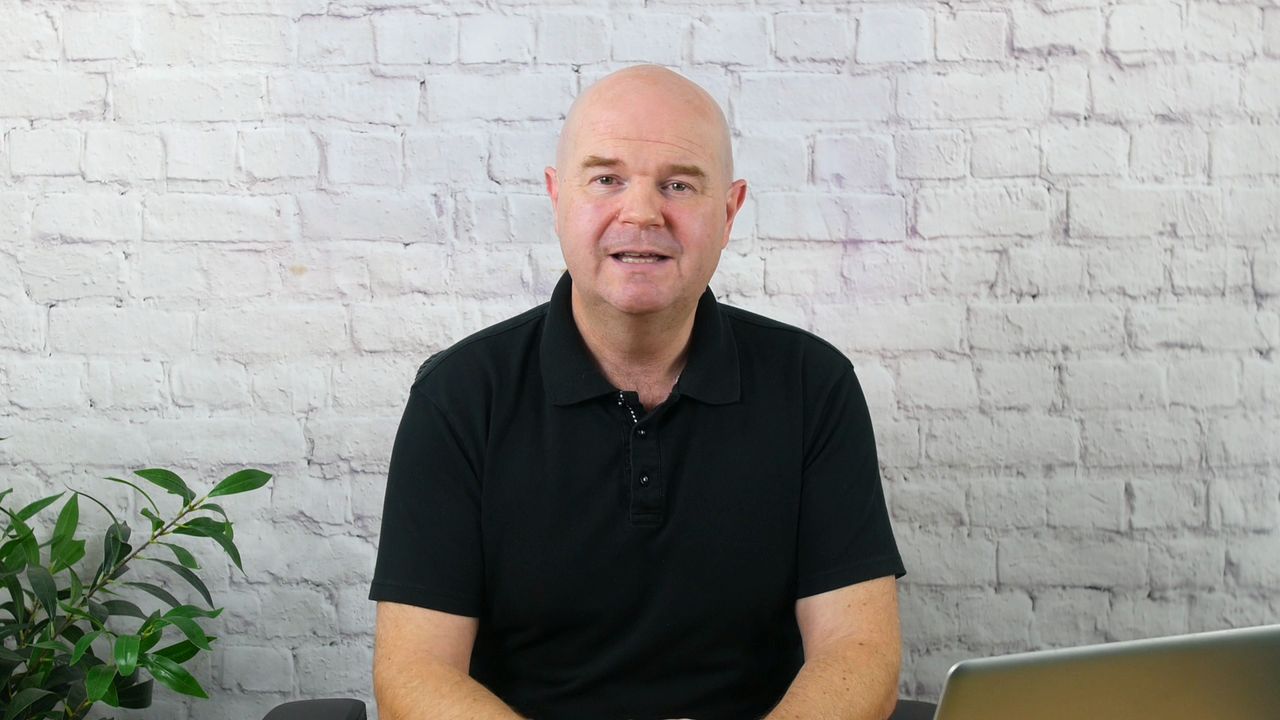
Sound on. English captions are available in the player. Prefer to read? Follow the steps.
6. Where to put it
- A bottom corner is the safe choice. It stays clear of faces and of most of what's happening in the shot.
- Avoid the top right. That's where YouTube shows info cards.
- Avoid the last 20 seconds if you use end screens. YouTube places its end-screen elements there and they can cover the code.
- Keep it off busy footage if you can, or keep the white card behind it so the camera can find it.
- Leave a margin from the edge. Some TVs crop a little of the picture, and YouTube's controls appear along the bottom when someone pauses.
7. How long to show it
Someone on a sofa needs to notice the code, pick up their phone, unlock it and open the camera. That takes longer than you'd think, so aim for 10 to 15 seconds, not a flash. Good moments are just after you've given people a reason to subscribe, or when you ask them to. You can show it more than once in a long video.
8. How big: scan distance
A common rule of thumb is that a QR code scans from about ten times its width. Phone cameras often do better on a bright screen, but it's a useful way to compare sizes.
For example, a 55-inch TV is about 68 cm tall. A code that takes up about a fifth of the picture's height (the size SofaSub uses) is about 15 cm across on that screen, so by the rule of thumb it scans from roughly 1.5 metres, and usually further in practice. On a bigger TV it's bigger. If your viewers sit far back, make the code larger, use a shorter link, and test from a real sofa.
Readability matters as much as size: a sharp PNG, a white quiet zone and steady footage under it all help. A code that moves, spins or sits under a heavy blur effect is harder to scan.
9. YouTube Shorts and vertical video
A code in a Short works the same way, with a few differences:
- Most Shorts are watched on a phone, and nobody can scan the screen they're holding. A code only helps when a Short is watched on a TV, a computer or someone else's screen, so keep your expectations modest.
- Links in Shorts descriptions and comments aren't clickable, so the "put the link in the description" fallback doesn't help phone viewers there. The links on your channel page still are.
- Mind YouTube's buttons. In the Shorts player the Like, Comment and Share buttons run down the right-hand side, and the title, channel name and captions sit along the bottom. Place the code higher up and away from the right edge, then check it in the Shorts player before publishing.
- Use a code without the landscape frame. SofaSub's full-frame graphic is 16:9 for normal videos. For a vertical video, use the Plain QR code download (on every plan) or the card-only graphic (Pro), and place it yourself, keeping a white border around it.
10. Test it on a TV
- Upload the video as Unlisted (or Private, if your TV is signed in to your own account).
- Play it on a TV at the quality your viewers will watch at, and sit where they would.
- Scan it with a couple of different phones, using the normal camera app.
- Check where it goes: the right channel or video, and that the page works when you're signed in to YouTube on the phone.
Test the phone side too: some viewers will see your video on a phone, where they can't scan their own screen. Put the same link in your description or a pinned comment for them.
11. Already published? Adding a code to an existing video
You can't put a QR code into a video that's already on YouTube. YouTube Studio's editor can trim and cut a published video, blur parts of it, add music and edit end screens and info cards, but it can't place an image on top of the picture. YouTube also doesn't let you swap a published video's file for a new one: a new upload is a new video, with its own address, starting again at zero views and comments.
So for videos that are already out:
- Add the code to your next videos. Most creators start here: it costs nothing to the videos you've already published.
- Add your link to the description and a pinned comment of the videos people are still watching. Viewers on a phone or computer can tap it (except on Shorts).
- Only re-upload if the new version is worth more to you than the old one's views, comments and links. That's rarely the case for adding a code.
Checklist
- PNG, dark squares on a light card, with a quiet zone
- On its own track above the footage
- Bottom corner, clear of the top right and the last 20 seconds
- On screen for 10 to 15 seconds, with a spoken "scan to subscribe"
- Big enough to scan from a sofa, tested on a real TV
- The same link in your description for people watching on a phone
Give TV viewers an easier way to subscribe.
Make your free QR code in a few minutes, and see what your viewers will see before you publish.
Start free